FeedHive supports Discord integration through Webhook URLs, allowing you to publish content directly to your Discord channels.
In this article we will cover:
- Creating a Webhook in Discord
- Copying the Webhook URL
- Adding Discord to FeedHive
Creating a Webhook in Discord
To create a webhook in Discord, follow these steps:
- Open Discord and navigate to your server.
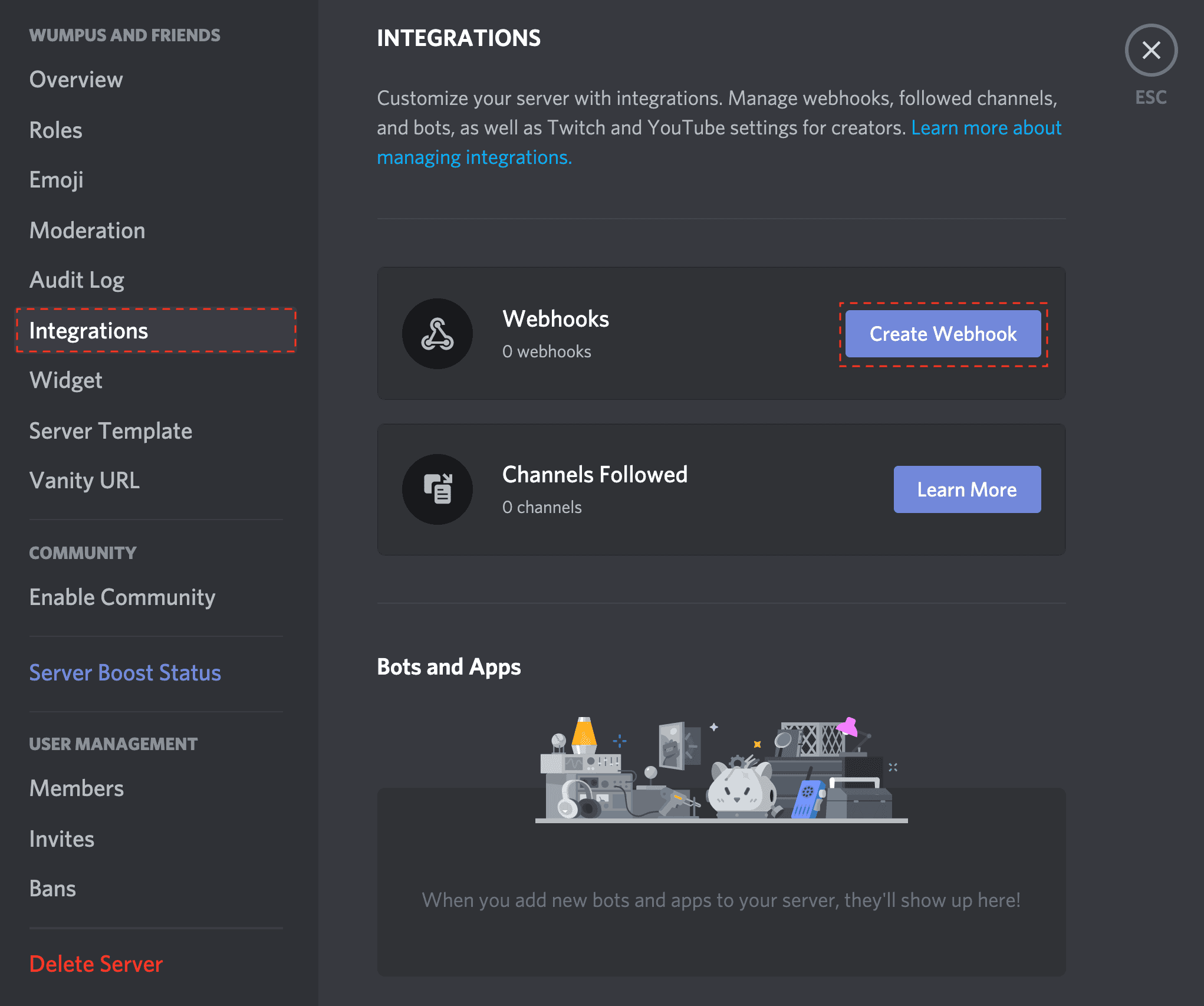
- Click on the Settings icon next to the channel where you want to post content.
- In the left sidebar, click on Integrations.
- Click on Create Webhook button in the Webhooks section.
Copying the Webhook URL
After creating the webhook, you need to copy the Webhook URL:
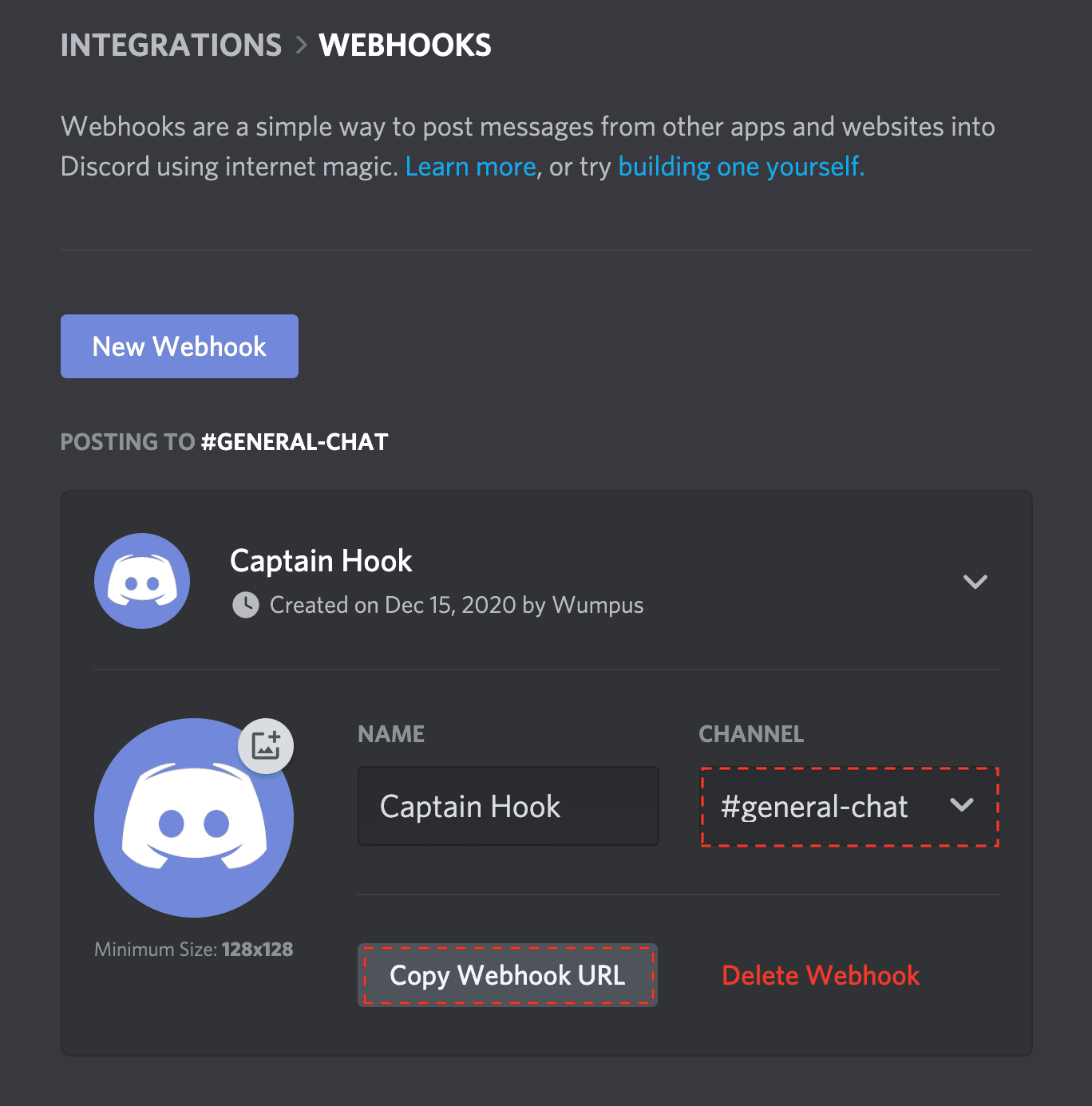
- Click on the webhook you just created to view its details.
- In the webhook settings, you'll see a Webhook URL field.
- Click on Copy Webhook URL button to copy the URL to your clipboard.
Adding Discord to FeedHive
To add your Discord channel to FeedHive, navigate to the /socials page and click the + Add Social button. Then select Discord from the list of available platforms.
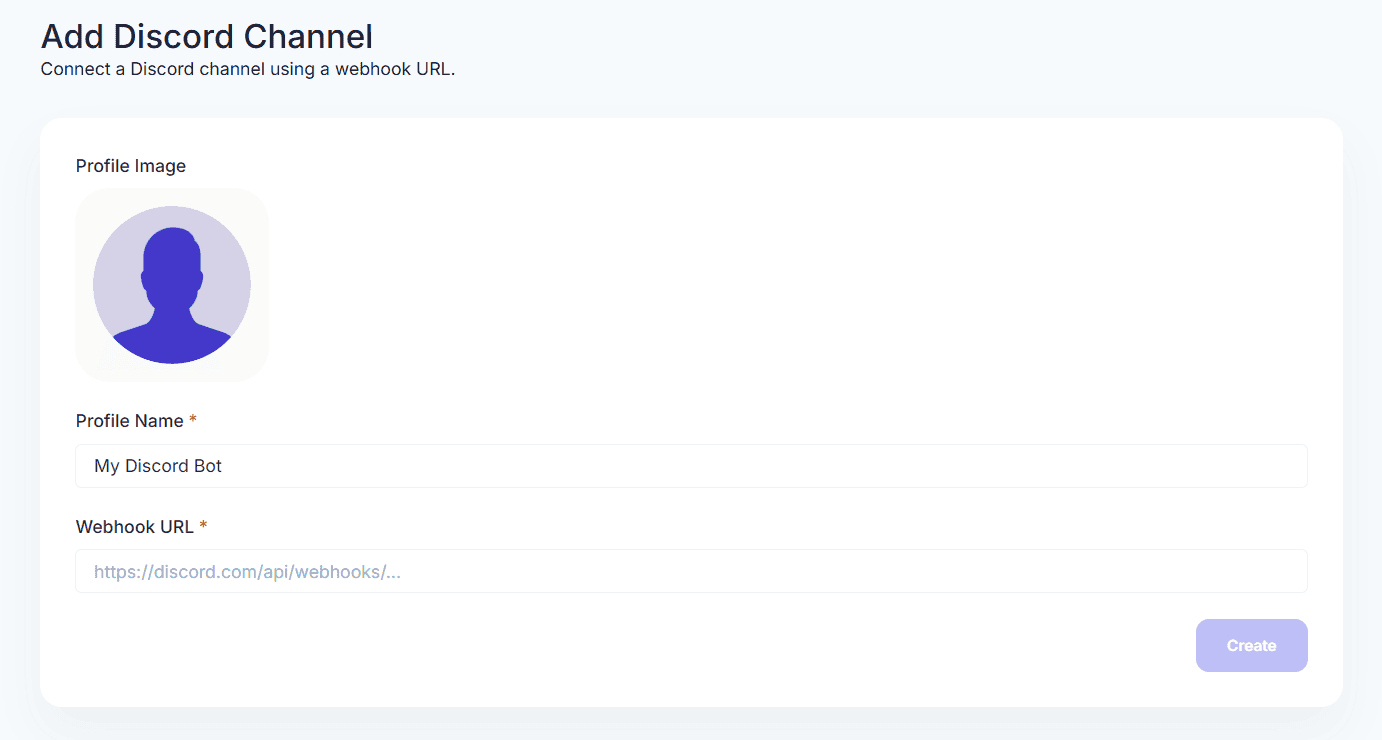
You will be presented with a form where you can configure your Discord connection:
- Profile Image: Upload an avatar image that will represent your bot in Discord (optional).
- Profile Name: Enter a name for your Discord bot (e.g., "My Discord Bot").
- Webhook URL: Paste the Webhook URL you copied from Discord in the previous step.
- Click Create to complete the setup.
Once you've completed these steps, you have successfully connected your Discord channel to FeedHive and can start scheduling posts to Discord! 🥳