CLI
FeedHive provides an official command-line interface for developers, scripts, and AI agents that need to work with FeedHive from a terminal.
Use the CLI when you want to list social accounts, inspect posts, create drafts, or build your own automation workflows on top of the FeedHive API.
Create an API key
From your FeedHive account, go to:
Settings > Account
If you want to connect a workspace, go to:
Settings > Workspace
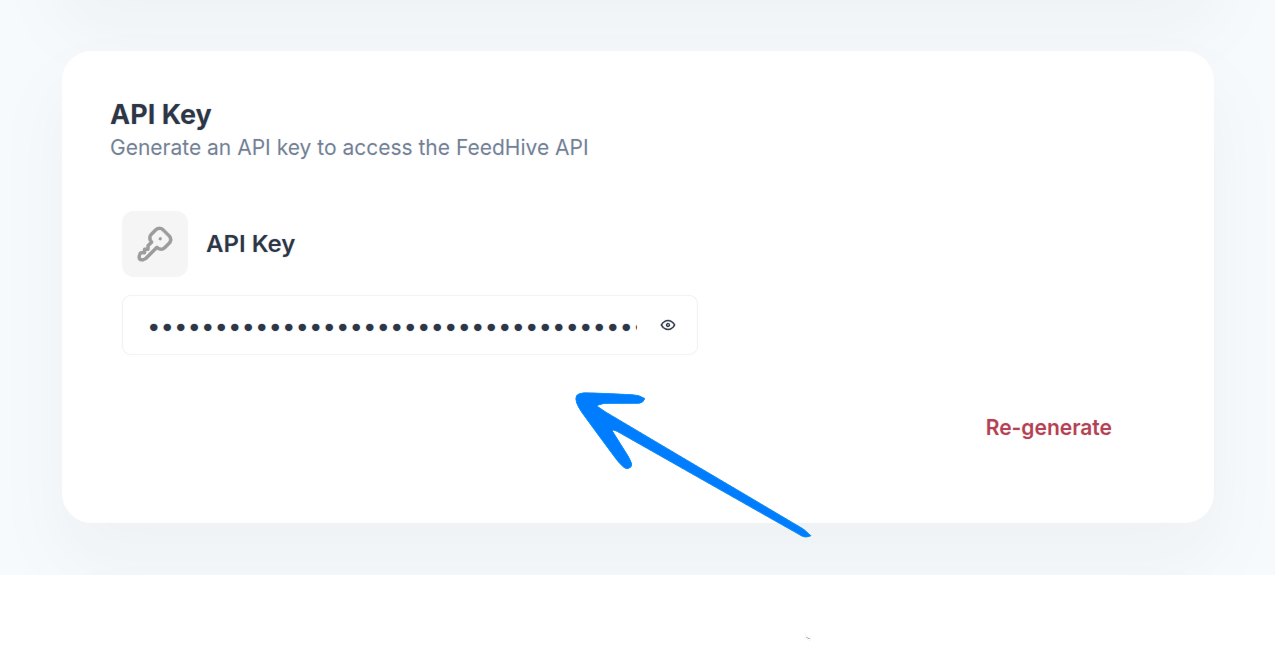
Scroll down to the API Key section and copy your API key.
Run the CLI
You can run the CLI directly with npx:
npx @feedhive/cli --helpOr run a specific command:
npx @feedhive/cli posts list --limit 20Authenticate requests
Provide your FeedHive API key as an environment variable:
export FEEDHIVE_API_KEY="fh_your_api_key_here"Then run CLI commands from the same terminal session.
Examples
List your connected social accounts:
npx @feedhive/cli socials listList draft posts:
npx @feedhive/cli posts list --status draft --limit 20Create a post from a JSON file:
npx @feedhive/cli posts create --body-file ./post.jsonCreate a label:
npx @feedhive/cli labels create --body '{"name":"Launch"}'When to use the CLI
The CLI is useful when you want to:
- Automate FeedHive from shell scripts
- Connect FeedHive to internal tools
- Build repeatable content workflows
- Let AI coding agents interact with FeedHive through terminal commands
- Explore FeedHive API workflows without writing custom HTTP requests
REST API
The CLI is built around FeedHive's public API workflows. If you want to call FeedHive directly from your own application, see the REST API documentation.