Claude
Claude supports custom remote MCP connectors. That gives Claude chat a route to FeedHive's MCP tools for finding accounts and posts, drafting content, and managing a schedule. This is separate from the Claude Code installer, which runs in the coding app.
Connect with MCP
Claude's custom connector instructions (opens in a new tab) let you add FeedHive using its remote MCP URL and your API key in an Authorization header.
Get a FeedHive API key
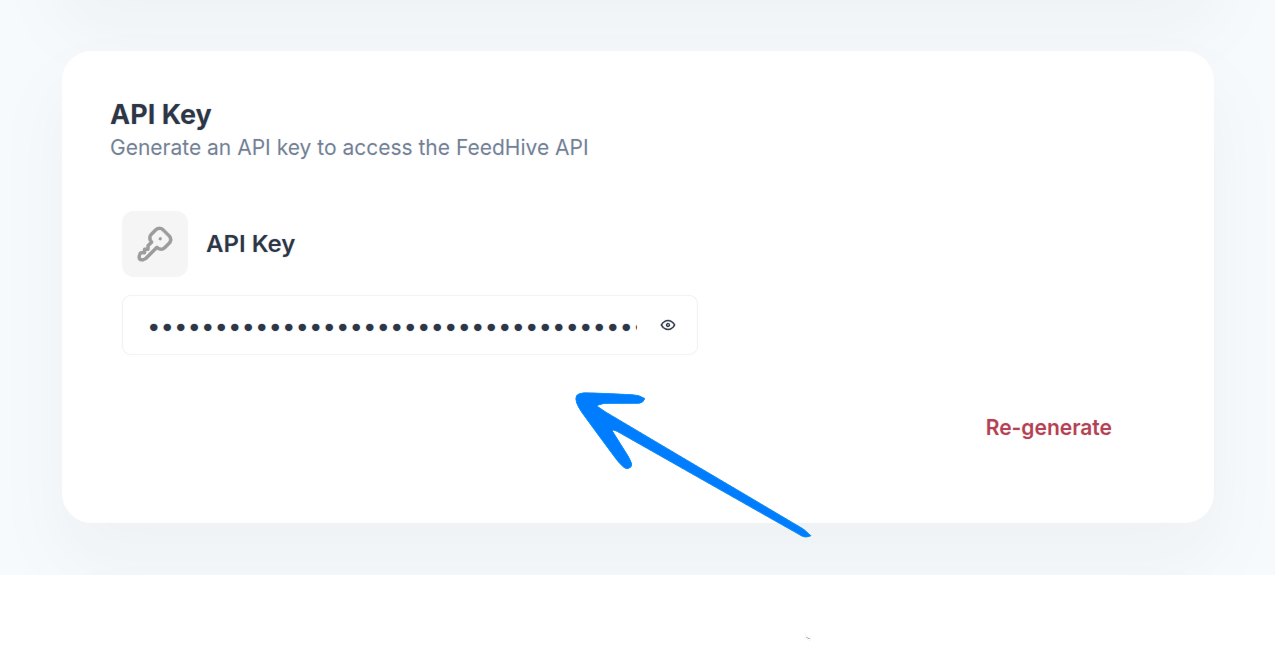
In FeedHive, open Settings > Account > API Key, or use Settings > Workspace > API Key for a workspace-scoped connection. Keep the key in private credential settings, never in a chat or URL.
Add a custom connector in Claude
In Claude, open Customize > Connectors, then + Add > Add custom connector. Name it FeedHive and set the remote MCP URL to https://mcp.feedhive.com. Choose No sign in rather than OAuth, and in Request headers add Authorization with the value Bearer YOUR_FEEDHIVE_API_KEY. For Team or Enterprise, an owner must first add the custom web connector in Organization settings > Connectors; shared fixed credentials grant access under that key, so use an appropriately limited workspace key.
Check a read-only tool first
Enable the connector for a conversation using + > Connectors. Ask Claude to list your FeedHive social accounts with feedhive_socials_list, or list drafts with feedhive_posts_list.
For the available tools, confirmation flags, and error handling, see the FeedHive MCP guide. Get approval before Claude updates or schedules a post; creating a draft is not publishing it.
Prefer a manual handoff?
Claude can draft and review social copy without any connector. Move the approved text into FeedHive yourself to choose accounts and schedule it. If you work in Claude Code instead of Claude chat, use the Claude Code guide.