Claude Code
Use Claude Code with FeedHive to create, organize, and schedule social content directly from your coding workspace.
Create an API key
From your FeedHive account, go to:
Settings > Account
If you want to connect a workspace, go to:
Settings > Workspace
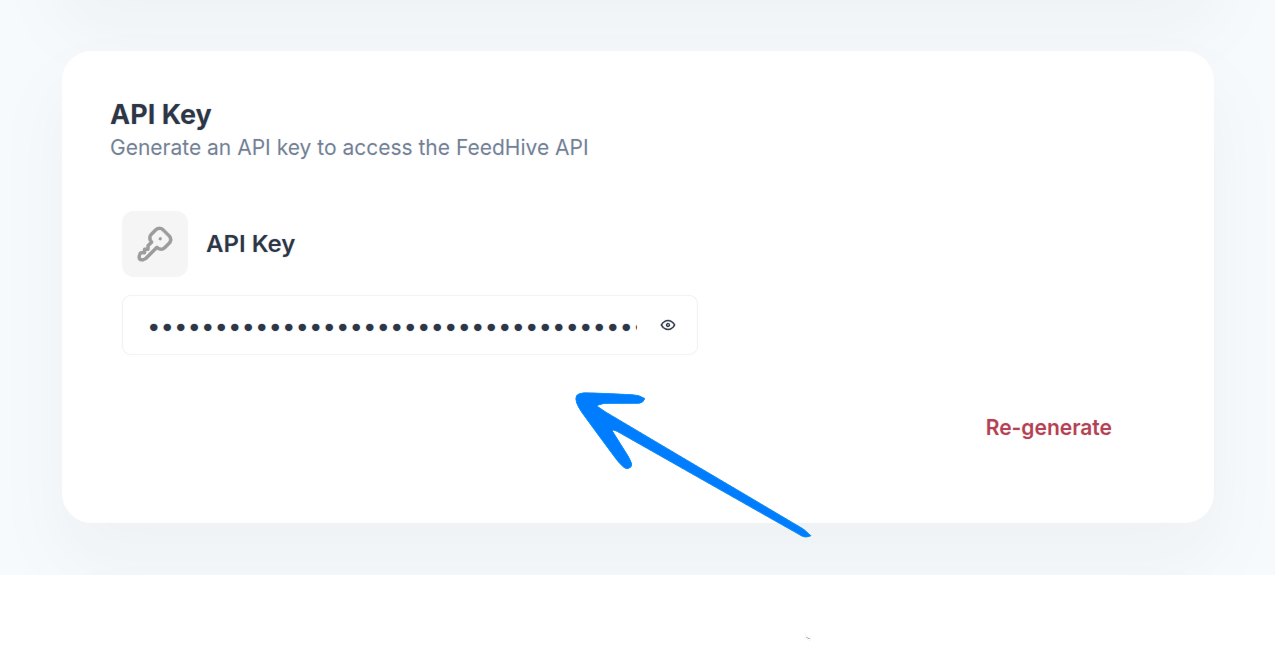
Scroll down to the API Key section and copy your API key.
Install the Claude Code plugin
Run the FeedHive Claude Code installer and replace [YOUR_API_KEY] with the API key from step 1.
npx @feedhive/setup-claude-code [YOUR_API_KEY]The installer adds the FeedHive Claude Code plugin to ~/.claude/skills/feedhive and stores your API key in ~/.feedhive/agent-tools.env.
Ask Claude Code to work with FeedHive
Once the installer finishes, open Claude Code and use the FeedHive skill to describe the social workflow you want to run. Include the platform, audience, tone, timing, and goal so Claude Code has enough context.
/feedhive:social
Create three LinkedIn post options announcing our new analytics dashboard.
Keep the tone clear and practical, and include a CTA to book a demo.
/feedhive:social
Turn this product update into an X thread,
and schedule the best version for tomorrow at 9:00 AM./feedhive:social
Draft an Instagram caption for our feature launch.
Keep it under 150 words, and make it sound confident but friendly.For direct API usage, see Get started. If you want to use OpenClaw instead, see OpenClaw.