MCP (Model Context Protocol)
FeedHive provides an MCP (Model Context Protocol) server that enables external MCP clients to interact with your FeedHive triggers programmatically. This allows AI assistants and automation tools to discover and execute your configured triggers through a standardized JSON-RPC interface.
MCP Endpoint: https://mcp.feedhive.com
Authentication
The MCP server uses API key authentication with the following flow:
- Client sends a request with a
Bearertoken in theAuthorizationheader - The token must have the
fh_prefix (e.g.,fh_your_api_key_here) - If valid, the request is processed; otherwise, a
401 Unauthorizedresponse is returned
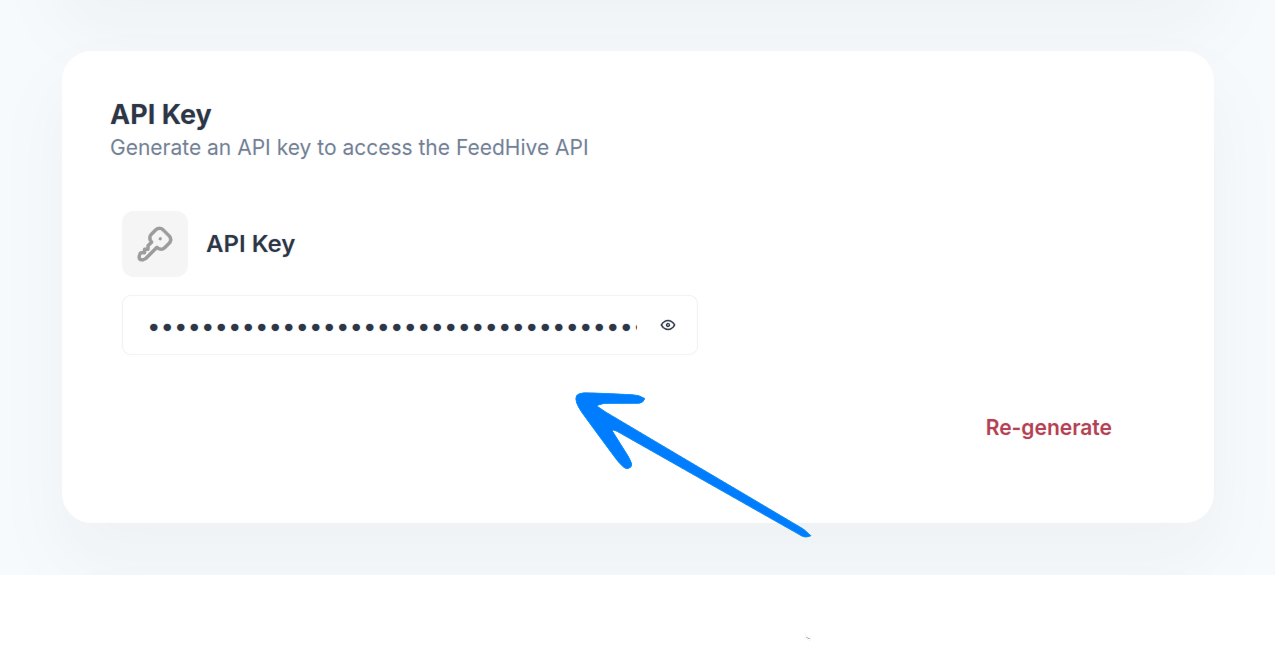
Getting Your API Key
From your FeedHive account, go to:
Settings > Account (or Settings > Workspace for workspace-level API keys)
Scroll down to the API Key section and copy your API key.
Supported JSON-RPC Methods
The MCP server implements three core JSON-RPC 2.0 methods:
1. initialize
Initializes the MCP session and returns server capabilities.
Request:
{
  "jsonrpc": "2.0",
  "id": 1,
  "method": "initialize",
  "params": {
    "protocolVersion": "2024-11-05",
    "capabilities": {},
    "clientInfo": {
      "name": "your-mcp-client",
      "version": "1.0.0"
    }
  }
}
Response:
{
  "jsonrpc": "2.0",
  "id": 1,
  "result": {
    "protocolVersion": "2024-11-05",
    "capabilities": {
      "tools": {}
    },
    "serverInfo": {
      "name": "feedhive-mcp-server",
      "version": "1.0.0"
    }
  }
}
2. tools/list
Lists all available triggers as tools. Each trigger is exposed with the naming convention trigger_{id}.
Request:
{
  "jsonrpc": "2.0",
  "id": 2,
  "method": "tools/list"
}
Response:
{
  "jsonrpc": "2.0",
  "id": 2,
  "result": {
    "tools": [
      {
        "name": "trigger_abc123",
        "description": "Create a new social media post",
        "inputSchema": {
          "type": "object",
          "properties": {
            "text": {
              "type": "string",
              "description": "Post content"
            },
            "imageUrl": {
              "type": "string",
              "description": "Optional image URL"
            }
          },
          "required": ["text"]
        }
      }
    ]
  }
}
3. tools/call
Executes a specific trigger by calling it with the provided arguments.
Request:
{
  "jsonrpc": "2.0",
  "id": 3,
  "method": "tools/call",
  "params": {
    "name": "trigger_abc123",
    "arguments": {
      "text": "Hello from MCP!",
      "imageUrl": "https://example.com/image.png"
    }
  }
}
Response (Success):
{
  "jsonrpc": "2.0",
  "id": 3,
  "result": {
    "content": [
      {
        "type": "text",
        "text": "Trigger executed successfully"
      }
    ]
  }
}
Response (Error):
{
  "jsonrpc": "2.0",
  "id": 3,
  "error": {
    "code": -32603,
    "message": "Trigger execution failed: Invalid input"
  }
}
How Triggers Are Mapped to Tools
Each FeedHive trigger is automatically exposed as an MCP tool with the following mapping:
- Tool Name:
trigger_{triggerId}(e.g.,trigger_abc123) - Description: Taken from the trigger's name or description field
- Input Schema: Dynamically generated based on the trigger's configuration
Error Handling
The MCP server follows JSON-RPC 2.0 error conventions:
| Error Code | Description | Cause |
|---|---|---|
-32700 | Parse error | Invalid JSON in request body |
-32600 | Invalid request | Missing required JSON-RPC fields |
-32601 | Method not found | Unsupported JSON-RPC method |
-32602 | Invalid params | Missing or invalid method parameters |
-32603 | Internal error | Trigger execution failed or server error |
401 | Unauthorized | Invalid or missing API key |
Example Error Response:
{
  "jsonrpc": "2.0",
  "id": 3,
  "error": {
    "code": -32602,
    "message": "Invalid params: Missing required field 'text'"
  }
}
Troubleshooting
401 Unauthorized Error
- Verify your API key is correct and has the
fh_prefix - Ensure the API key belongs to the correct account/workspace
- Check that the API key hasn't been revoked
Tool Not Found
- Confirm the trigger ID is correct
- Use
tools/listto see all available triggers - Ensure you're using the format
trigger_{id} - Ensure the trigger is active and not disabled
Trigger Execution Failed
- Validate your input against the trigger's schema
- Check that all required fields are provided
- Review trigger configuration in FeedHive dashboard
- Ensure the trigger is active and not disabled
FAQ
What is MCP used for?
MCP (Model Context Protocol) allows AI assistants and automation tools to programmatically interact with your FeedHive triggers through a standardized JSON-RPC interface.
How do I get started with MCP?
First, get your API key from Settings > Account (or Settings > Workspace). Then use any MCP-compatible client to connect to the FeedHive MCP server with your API key prefixed with fh_.
What triggers are available through MCP?
All your configured triggers are automatically exposed as MCP tools. Use the tools/list method to see all available triggers in your account.
Can I use MCP with multiple workspaces?
Yes! Use workspace-level API keys to access triggers from specific workspaces. Each workspace has its own set of triggers available through MCP.
What happens if a trigger execution fails?
The MCP server will return a JSON-RPC error response with details about why the trigger failed. Check the error message for troubleshooting information.
Is there a rate limit for MCP requests?
Rate limits depend on your FeedHive plan. Contact support if you need higher rate limits for your use case.